
If you need proof of trust on your site in the next five minutes, paste a Google Maps embed iframe. If you run WordPress and want it to look polished without touching code, install a review plugin. If you need full control over layout, caching, and compliance, fetch reviews server-side through the Google Places API. Every method needs the same attribution: show the reviewer's name and link back to Google.
TL;DR:
- Using a Google Maps iframe offers a quick setup under five minutes but only shows a small, static review excerpt, not a full feed or recent reviews.
- WordPress plugins can display up to 10 reviews with minimal setup, but they depend on plugin updates and caching strategies to keep reviews current.
- Fetching reviews server-side through the Places API provides full control over design and moderation but limits you to about five recent reviews per API call, regardless of total review count.
- Third-party review widgets offer flexible layouts and auto-updates but introduce dependency on external servers, which can affect uptime and data control.
- Regular review refreshes are best scheduled weekly or daily via server-side caching to prevent displaying outdated testimonials and maintain trustworthiness.
Table of Contents
- How Do You Embed Google Reviews on Your Website?
- Method A: Embed a Google Maps Iframe in Minutes
- How Do WordPress Plugins Display Google Reviews Without Code?
- Setting Up Google Places API for Full Review Control
- Should You Use a Third-Party Review Widget Instead?
- Which Review Display Format Converts Best?
- How Often Should You Refresh Embedded Reviews?
- A Setup Checklist for Professional Service Websites
- What This Guide Gets Right That Most Advice Misses
- Let Epdwebsites Handle Your Google Reviews Setup
- Sources
- FAQ
How Do You Embed Google Reviews on Your Website?
Pick a method based on how much time you have and who maintains your site. Each option below trades speed for control differently, and the right choice depends on whether you're a solo practitioner updating your own site or a developer building something that has to hold up over years.
- Maps iframe: Setup time under 5 minutes. No skill required beyond copy and paste. Shows your map and a handful of review snippets, but it's static and not a true review feed.
- WordPress plugin/widget: Setup time 15 to 30 minutes. Beginner-friendly. Pulls in multiple reviews with layout options, but you're dependent on the plugin's update cycle and data handling.
- Places API (server-side): Setup time several hours to a day for a developer. Requires coding and API key management. Gives full control over caching, moderation, and design, but returns only a limited slice of your most recent reviews.
- Third-party widget/component: Setup time 20 minutes to a few hours. Ranges from no-code to developer-assisted. Adds carousel and grid layouts fast, but introduces a vendor dependency you don't fully control.
Whichever route you pick, the reviews should refresh automatically rather than sit frozen from launch day, and every displayed review needs a name, a link to the original Google listing, and unaltered text.
Method A: Embed a Google Maps Iframe in Minutes
This is the fastest way to get something live today, and it works on almost any platform that accepts raw HTML.
- Search for your business on Google Maps and open its profile.
- Click Share, then select Embed a map.
- Choose the map size, then copy the iframe code Google generates.
- Paste that code into your site: a plain HTML page, a custom HTML block in WordPress, Squarespace, or Wix, or the "Embed a link" option in Google Sites.
- Preview the page to confirm the map and business card load correctly.
What you get is a live map card with your star rating and a short excerpt from one or two reviews, not a scrolling feed of everything customers have written. Google generates this display; it isn't built for showcasing dozens of testimonials, and it won't update to highlight your newest five star review specifically. This is why the Google Maps embed approach works best as a quick trust signal on a contact page or footer, not as your primary review showcase.
Pro Tip: Drop the iframe on your "Contact Us" or "Locations" page instead of your homepage. It reinforces local credibility exactly where visitors are deciding whether to call, without competing for attention with your main conversion content.
Use this method when you need something live today. Move to a plugin or API-based build once you have time to invest in a display that actually rotates through your best reviews.
How Do WordPress Plugins Display Google Reviews Without Code?
Most WordPress review plugins follow the same basic flow: paste your Google Place ID or Maps URL, choose a layout, and drop a shortcode or Gutenberg block wherever you want reviews to appear, as explained in WordPress SEO Automation.
Many of these tools let you display up to 10 Google reviews without needing an API key at all, which removes the biggest technical hurdle for non-developers. Add an API key later and the plugin can pull fresh reviews automatically instead of requiring a manual refresh. Most also come with shortcodes and blocks compatible with builders like Elementor, Beaver Builder, and Divi, so placement in a sidebar, footer, or dedicated testimonials page takes minutes rather than hours.
What to check before you commit to one:
- Update policy: does it refresh automatically, or do you need to manually resync?
- Local caching vs. remote loading: plugins that store review data locally tend to load faster and expose less of your data to third-party servers on every page view.
- Privacy handling: confirm the plugin isn't sending visitor data anywhere beyond what's needed to display reviews.
- Layout options: carousel, grid, or badge, and whether they match your site's existing design.
Pro Tip: If your plugin shows blank space where reviews should be, check the Place ID first. A mistyped ID is the single most common reason a review widget fails to load on a fresh install.
Common troubleshooting: reviews not updating usually means the cache interval is set too long or the API key wasn't added; a broken layout usually means a CSS conflict with your theme, which you fix by adjusting the widget's container width.
Setting Up Google Places API for Full Review Control
Developers who want reviews to match their exact design, caching rules, and compliance needs should skip plugins and fetch data directly from the Places API.
- Request Place Details server-side, explicitly including the
reviewsfield in your fetch request. - Store your API key on the server only. Never expose it in client-side JavaScript.
- Cache the response locally (database or file cache) instead of calling the API on every page load.
- Schedule a refresh job (daily or a few times a week) to pull updated review data.
- Restrict the API key by domain and API type in Google Cloud Console to limit misuse if it ever leaks.
The Place Details endpoint returns each review as an object with a rating, review text, authorAttribution (name, profile link, photo), and publishTime. That structure gives you everything you need to build a compliant display, provided you keep the author's name and profile link visible rather than stripping them out for a cleaner look.
The one number that matters most here: the Places API typically returns only the five most recent reviews for a location, no matter how many total reviews your business has. If you have 200 reviews on Google, your API call still comes back with roughly five. Plan your caching and refresh schedule around that constraint rather than expecting a full archive.
Log every scheduled fetch so you can spot failures before a client notices stale reviews on their homepage. This server-side pattern is the one agencies and developers generally prefer over client-side calls, since it keeps the API key hidden and gives you full control over moderation and display logic.
Should You Use a Third-Party Review Widget Instead?
Third-party widgets sit between a plugin and a custom API build. They typically offer carousel and grid layouts, automatic updates, basic moderation controls, and support for multiple business locations through a single embed code or script tag.
The trade-off is dependency. You're relying on someone else's servers to fetch, cache, and serve your review data, which means their uptime becomes your uptime, and their access to your review content is something you don't fully control. Open-source components and libraries built around the Places API exist specifically to give developers more layout flexibility than a raw API call, but many still lean on the same underlying five-review limit or a vendor's own caching layer to work around it.
Before adopting one, run it through a short checklist:
- Does it support your Place ID directly, or does it require manual review entry?
- How often does it refresh, and does it cache locally or call out on every page load?
- Can you add structured data (schema) alongside the visual widget, or is that blocked?
- Is the display accessible with a keyboard and screen reader, not just visually appealing?
Pro Tip: Test any new widget on a staging copy of your site first. If it slows page load or breaks mobile layout, you want to find that out before a client or customer does.
If a widget underperforms, removing it should be as simple as deleting a script tag or shortcode. If it isn't, that's a sign it was too deeply integrated for a "quick" solution.
Which Review Display Format Converts Best?
Layout choice matters more than most site owners assume, and the right one depends on where the reviews sit on the page.
| Format | Best placement | Why it works |
|---|---|---|
| Badge (star rating + count) | Header or footer, sitewide | Constant, low-friction trust signal without competing for attention |
| Carousel | Homepage, near the top | Shows variety and freshness without consuming much vertical space |
| Grid | Dedicated testimonials page | Lets visitors scan several reviews at once for depth of proof |
| Single testimonial | Service or pricing page | Reinforces the decision right where visitors are close to converting |
Beyond layout, adding AggregateRating schema in JSON-LD can surface your star rating directly in search results, but only add it when the rating and review count match what's visible both on your page and on your Google Business Profile. A mismatch between structured data and visible content risks a manual penalty or, at minimum, a confused visitor.
For accessibility, make sure star icons have text alternatives, review carousels are keyboard navigable, and color contrast on badges meets basic readability standards. Reviews build trust in ways that go beyond decoration when they're placed where a visitor is actually deciding, not just wherever there's empty space.
Pro Tip: Track click-through or scroll depth on pages before and after adding a review display. A badge near your call-to-action button often moves conversion more than an entire testimonials page buried in your navigation.
How Often Should You Refresh Embedded Reviews?
Stale reviews undercut the exact trust you're trying to build, so refresh cadence needs a deliberate plan rather than a "set it and forget it" install.
- Schedule server-side fetches daily or weekly, not on every page load, to stay within API quota limits and reduce load on both your server and Google's.
- Create an API key in Google Cloud Console, then restrict it by IP address or HTTP referrer so it can't be used outside your own systems.
- Run the refresh as a background job (a cron task or scheduled function) rather than triggering it from a visitor's browser.
- Store the cached results in a database or flat file your site reads from directly, so page load never depends on Google's response time.
On compliance: never edit or paraphrase a review's text. Keep the reviewer's name and a link back to their original Google review visible, and disclose clearly if you're only showing a curated selection rather than every review you've received. If you spot a fake or suspicious review, don't just hide it silently. Flag it through Google's own reporting tools, and keep a simple internal log of what you've flagged and why, especially for regulated fields like medical practices where a fabricated review carries more weight. A secure, compliant setup protects both your site's performance and your legal footing.
A Setup Checklist for Professional Service Websites
Attorneys, CPAs, and medical practices carry higher stakes than a typical retail site when it comes to review displays, since a broken widget or a mishandled patient testimonial reflects directly on professional credibility.
Some professional web design providers approach these builds with a few non-negotiables: API keys stay server-side and restricted by domain, review data is cached locally rather than pulled fresh on every visitor, and every display goes through staging before it touches a live site. For medical clients specifically, that means avoiding any display pattern that could expose patient-identifying details tied to a review, and building in a rollback plan if a widget update breaks the page.
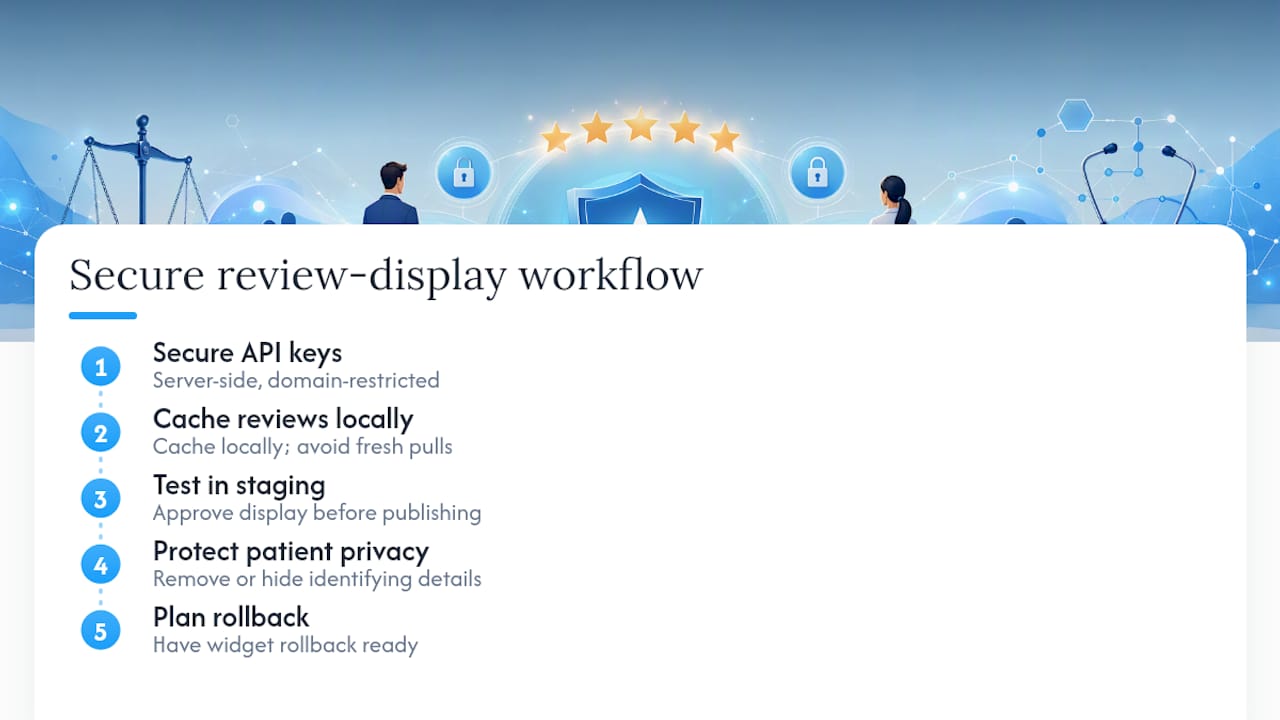
Decide early whether local storage or remote loading fits your privacy needs; local storage generally performs better and shares less data externally. If your site handles ongoing monitoring and monthly maintenance already, adding review refresh jobs to that existing schedule is straightforward. If you're managing your own WordPress install with no developer support, a well-reviewed plugin is often the more realistic choice than attempting a custom API build.
What This Guide Gets Right That Most Advice Misses
Most articles on this topic treat every embedding method as equally valid and let the reader sort out the trade-offs. That's backwards. The Places API's five-review ceiling is the detail that changes everything about how you should plan a build, and most guides bury it near the bottom instead of leading with it. If you don't know that limit exists before you start, you'll design a "full review feed" that Google's own API was never going to support.
The conventional advice also underrates the iframe. It gets dismissed as too basic, but for a solo attorney or a CPA updating their own site with no developer on retainer, five minutes of copy and paste beats a stalled six month plan to "do it properly" with an API build that never gets finished.
What the reader should prioritize first isn't the flashiest layout. It's attribution and refresh cadence. A review widget that shows outdated testimonials from three years ago, or one that strips reviewer names to look cleaner, does more damage to trust than having no widget at all. Get the plumbing right before you worry about the carousel animation.
— Kate
Let Epdwebsites Handle Your Google Reviews Setup
Building a review display that's fast, secure, and still compliant with Google's attribution rules takes more coordination than most site owners have time for between running an actual practice or firm. Epdwebsites builds and maintains these integrations as part of full website builds for attorneys, CPAs, real estate agents, and medical practices, so you get a setup that's tested once and left alone, not a plugin you're troubleshooting every few months.

What's included when you bring in Epdwebsites for a review integration:
- Secure API key setup with domain restriction and server-side fetching
- Local caching configured to balance freshness with load speed
- Accessible, on-brand layout choices (badge, carousel, or grid) matched to your site
- Ongoing monitoring so a broken widget gets caught before a client sees it
Explore the Google Reviews add-on Epdwebsites offers, or request a consultation to talk through what your current site needs and get a straightforward plan for adding reviews the right way.
Sources
- Place Reviews | Maps JavaScript API | Google for Developers
- How to Add Google Reviews to Your Website in 2026
FAQ
How Do You Embed Google Reviews for Free?
The Google Maps iframe is entirely free: open Maps, click Share, choose Embed a map, and paste the code into your site. Many WordPress plugins also let you display up to 10 reviews with no API key or subscription.
How Do You Hyperlink to Google Reviews?
Copy the "Write a review" or profile link from your Google Business Profile and use it as the anchor for a "Read our reviews on Google" link; this satisfies the attribution requirement of linking back to the original source.
Can You Embed Google Reviews Without Plugins?
Yes. Paste the Maps iframe directly into an HTML page for a no-code option, or fetch reviews server-side through the Places API if you have development resources and want full layout control.
What Is an Embedded Review?
An embedded review is customer feedback pulled from a platform like Google and displayed directly on a business's own website, typically through an iframe, a plugin widget, or a live API-driven feed rather than a static screenshot.
How Many Google Reviews Can You Display at Once?
The Places API generally returns only the five most recent reviews per location, while WordPress plugins often display up to 10 without an API key, and third-party widgets vary by vendor.