
Yes, you can move from Squarespace to self-hosted WordPress, but the automated export only covers part of the job. Expect a focused weekend for a small brochure site, or longer for something larger with a store attached. The three things that trip people up every time: missing images, layouts that vanish on export, and redirects nobody mapped before launch.
TL;DR:
- Properly mapping all URLs and implementing server-level 301 redirects is critical to preserving SEO rankings during migration; skipping this step risks ranking and traffic loss.
- The Squarespace export only covers basic pages, blogs, text, and images, leaving out store pages, galleries, forms, and style settings that must be recreated manually.
- Use a staging environment on managed hosting, lock down permalinks, and ensure redirects are thoroughly tested before going live to prevent broken links and SEO damage.
- Large XML files and external images often require special handling, such as increasing upload limits and running image fetch plugins immediately after import to avoid broken media links.
- For high-revenue or competitive sites, hiring migration professionals to create comprehensive redirect plans and rebuild themes while monitoring SEO post-launch is a safer choice.
Table of Contents
- Squarespace to WordPress Migration: What Exports and What Doesn't
- How Do You Prepare for a Squarespace Site Export?
- Should You Use Managed Hosting and a Staging Site?
- How Do You Export the .xml File From Squarespace?
- Importing Into WordPress and Fixing Broken Images
- Rebuilding the Pages That Don't Survive Export
- Setting Up Permalinks and 301 Redirects That Preserve SEO
- DNS Repoint or Full Domain Transfer: Which Is Faster?
- Launch Day: The Testing Checklist Before You Go Live
- When Does This Job Need a Professional?
- Where to Find the Exact Step-by-Step Documentation
- An Honest Take on Squarespace to WordPress Migrations
- Get a Migration Done Right the First Time
- Sources
- FAQ
Squarespace to WordPress Migration: What Exports and What Doesn't
The Squarespace export tool produces a WordPress-compatible XML file, but it's built for pages, one blog collection, and basic text and image blocks. That's it. Everything visually distinctive about a Squarespace site tends to be exactly what gets left behind.
Here's what actually survives the trip, and what you'll have to rebuild by hand, according to Squarespace's own export documentation:
- Exports cleanly: standard pages, your primary blog, plain text and image content blocks
- Does not export: index pages, cover pages, gallery pages, product/store pages, forms, member areas, custom CSS, and most style settings
- Image handling: some images come through as hotlinked files still pointing at Squarespace's servers, not actual files sitting in your new WordPress media library
Before you touch the export button, screenshot every page that won't migrate and download any PDFs, spreadsheets, or files hosted directly on your Squarespace site. Once you cancel that plan, those files disappear with it.
How Do You Prepare for a Squarespace Site Export?
The single biggest reason migrations lose traffic isn't a bad theme or a slow host. It is skipping the URL inventory before anyone touches the export button. You need a definitive list of every URL currently live and indexed, not just the ones you remember.
- Pull your sitemap.xml directly from your Squarespace site for a baseline URL list.
- Export "Indexed pages" from Google Search Console and compare it against that sitemap. This catches orphaned pages that rank but aren't linked from your navigation.
- Crawl the live site with a tool like Screaming Frog to catch anything the sitemap and Search Console both missed.
- Pull your top-traffic pages from analytics so you know which URLs need redirect priority if time runs short.
- Build a redirect spreadsheet with four columns: old URL, new URL, redirect type, and a verification checkbox.
Pro Tip: Treat that spreadsheet as your project's single source of truth. Every rebuild decision, every redirect, every "did we forget something" moment gets answered by checking it, not by memory.
Should You Use Managed Hosting and a Staging Site?
Managed WordPress hosting costs more than a bargain-bin shared plan, but for a small business, it's usually worth it. You get automatic backups, built-in staging environments, and support that actually understands WordPress rather than generic server troubleshooting.
Build the new site on a staging URL while your Squarespace site stays live and public. Nobody sees the works-in-progress version, and you're not racing a countdown clock.
Before importing anything, lock down a few settings:
- Set permalinks to match your old URL structure as closely as possible
- Install an SSL certificate (most managed hosts include this free)
- Turn on automated backups from day one
- Install only the plugins you'll actually need: an SEO plugin, a form builder, and a caching tool
How Do You Export the .xml File From Squarespace?
The export lives in Squarespace's settings under Website > Advanced > Import/Export, then you select the WordPress destination option to generate a WordPress-ready file rather than a generic Squarespace backup.
- Navigate to the export tool and choose WordPress as the target platform.
- Wait for the file to generate. Larger sites with hundreds of blog posts can take several minutes. If it stalls or times out, try exporting during off-peak hours or contact Squarespace support for a manual export.
- Open the downloaded XML and count entries. Compare that count against your live site's actual page and post totals. A mismatch here means something didn't make it into the file, and you want to know that now, not after import.
Importing Into WordPress and Fixing Broken Images
Head to Tools > Import in your WordPress dashboard and install the WordPress importer if it's not already active. Upload the XML file, assign authors to the incoming content, and check the box to download and import file attachments.
A few things commonly go sideways here:
- Large XML files sometimes exceed your host's upload limit; ask your host to raise it temporarily
- Partial imports happen when the process times out midway. Re-running the import usually picks up where it left off without duplicating content
- Images sometimes import as links back to Squarespace's servers instead of actual files in your media library
That last one is the sneaky problem. A plugin like Auto Upload Images scans your posts, fetches any externally hosted images, drops them into your WordPress media library, and swaps the old URLs for local ones automatically.
Pro Tip: Run the image fix immediately after import, before you start rebuilding pages. If Squarespace cancels your account while images still point to their servers, every one of those images breaks permanently.
Rebuilding the Pages That Don't Survive Export
Index pages, cover pages, galleries, and anything built from Squarespace's proprietary content blocks need to be recreated manually. The WordPress block editor (Gutenberg) or a page builder plugin handles most of this reasonably well once you get the hang of it, using WordPress's built-in tools as your foundation.
Three categories eat the most rebuild time:
- Visual layout pages: index, cover, and gallery pages need manual recreation in your new page builder
- Forms: contact and quote forms don't export at all. Rebuild them with a plugin like WPForms or Gravity Forms, then test every submission path to confirm the notification emails actually arrive
- Store items: Squarespace Commerce doesn't hand off cleanly. Export your product catalog as a CSV and import it into WooCommerce, then manually recheck categories, attributes, and product images since CSV imports frequently mangle at least one of those three
Setting Up Permalinks and 301 Redirects That Preserve SEO
This is where most of the real migration work happens, and it's also where most guides get vague. The export itself is the easy part. Rebuilding layouts, restoring SEO metadata that never made it into the XML, and configuring redirects that actually preserve your rankings is the phase that determines whether this migration helps or hurts you.
- Match your permalink structure in WordPress settings to your old Squarespace URL pattern wherever it's feasible. Fewer redirects needed means fewer things that can break.
- Implement 301 redirects at the server level rather than through a plugin alone. Server-level redirects fire before WordPress even loads, so they survive plugin updates, plugin removals, and site hiccups that would otherwise break a plugin-based redirect.
- Test every redirect on your priority list, not by clicking links, but by pasting the old URL directly into your browser and confirming the response header actually returns a 301, not a 302 or a soft 404.
- Submit your new sitemap to Google Search Console once redirects are live, then watch the Coverage report for the next few weeks.
If a date format shifted during import (unpadded versus padded month and day, for instance), test one sample blog post before deciding whether to fix it at the permalink level or write individual redirects for every affected post.
Pro Tip: Don't spot-check five redirects and call it done. Pull your top 20 to 50 highest-traffic URLs from analytics and verify every single one individually. A missed redirect on a low-traffic page barely matters. A missed redirect on your best-performing page is a real revenue problem.
DNS Repoint or Full Domain Transfer: Which Is Faster?
You've got two paths for pointing your domain at the new WordPress host, and they run on very different clocks:
- DNS repoint (updating A and CNAME records) is the faster route, with propagation typically finishing in 1 to 48 hours
- Full registrar transfer usually takes 5 to 7 days and commonly adds a year to your domain registration in the process
- Leave your MX records untouched during either process so email keeps flowing without interruption
- For most small sites, a DNS repoint is the simpler, lower-risk choice unless you have a specific reason to move registrars entirely
Launch Day: The Testing Checklist Before You Go Live
Launch day isn't the finish line. It's the point where small oversights turn into missed calls and lost inquiries if you skip verification.
- Confirm the staging site is fully built out and functional before doing anything else.
- Disable "discourage search engines from indexing this site" in WordPress settings. This one setting, left checked, has quietly tanked more migrations than any redirect mistake.
- Point your DNS and wait out the propagation window.
- Verify redirects with direct header checks on your priority URL list, then crawl the new live site for internal links still pointing at old Squarespace URLs.
- Watch Google Search Console daily for the first two weeks, fixing any 404s that surface.
- Keep your Squarespace site active for roughly 30 days as a rollback option and a source for anything you missed during the rebuild.
Pro Tip: A medical practice launch checklist built for a professional services site applies just as well here: verify every conversion path (phone numbers, contact forms, booking links) works before you consider the migration finished, not just before you announce it.
When Does This Job Need a Professional?
If your Squarespace site drives meaningful revenue, ranks for competitive terms, or runs on a heavily customized template, the calculation changes. A botched redirect on a lead-generation page or an online store costs real money every day it stays broken.
A migration professional typically delivers:
- A complete URL map and redirect spreadsheet built before any code changes
- Server-level redirects configured correctly the first time
- A rebuilt theme matching your brand, not a generic default
- Full SEO metadata restoration and a post-launch Search Console monitoring period
- A staging workflow so your live site never goes dark during the build
When evaluating any vendor, ask specifically how they handle redirect mapping and staging indexation. A well-run staging lockdown process keeps search engines from indexing your work-in-progress site by accident, which is a mistake that's shockingly common and genuinely hard to undo.
Where to Find the Exact Step-by-Step Documentation
For the precise click-by-click mechanics referenced throughout this guide, these are the sources worth bookmarking:
- Squarespace's official export documentation
- WPMU DEV's guide to post-migration SEO tasks
- Kinsta's seven-step Squarespace to WordPress migration walkthrough
- Comprehensive site migration SEO checklist
An Honest Take on Squarespace to WordPress Migrations
Most migration guides treat the export as the hard part. It isn't. Clicking a button and downloading an XML file takes five minutes. The actual work, the part that determines whether you keep your Google rankings or lose them, is the redirect map you build before you export anything.
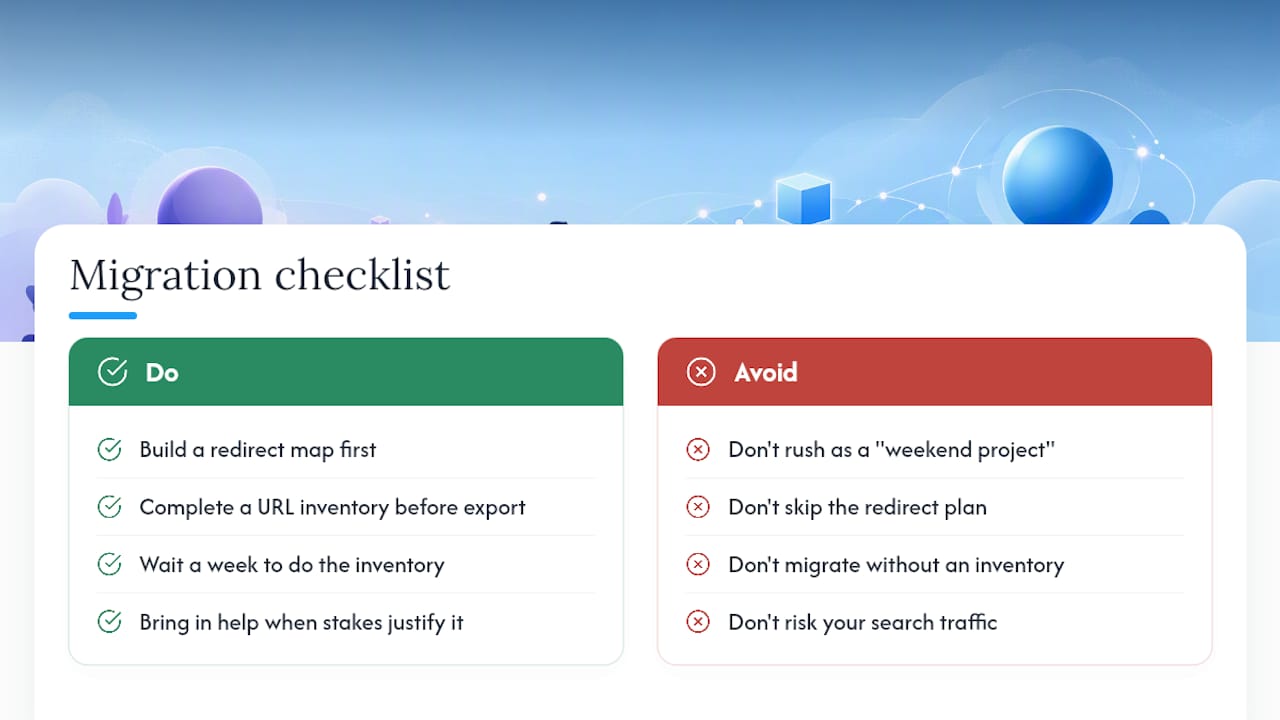
I'd go further than most guides do here: if you don't have time to build a proper URL inventory, you don't have time to migrate yet. Wait a week, do the inventory, then start. A rushed migration with no redirect plan doesn't just risk a few 404 errors. It risks the exact search traffic that's been paying your bills.
The conventional advice oversells the "weekend project" framing for anyone running a site with real commercial weight, whether that's a law firm intake form, a consulting inquiry page, or a small storefront. A weekend covers a five-page brochure site. It does not cover a site with 40 blog posts, a store, and three years of accumulated search rankings. Know which one you're running before you commit to a timeline, and don't be afraid to bring in help once the stakes justify it.
— Kate
Get a Migration Done Right the First Time
Everything above works if you have the hours, the patience, and the tolerance for troubleshooting redirect headers at 11 PM. Not every business owner has that combination, and for a revenue-generating site, the cost of a mistake usually outweighs the cost of getting help.

Some web design and hosting providers specialize in serving professional service providers like attorneys, CPAs, real estate agents, consultants, and medical practices, focusing on migrations without dropped leads or broken forms. This typically involves performing a full URL inventory, implementing server-level redirects, rebuilding themes to match clients' brands, and hosting with backups included from the start. For sites that generate client inquiries, a DIY migration without a mapped redirect list can be risky. Take a look at Epdwebsites's website design and hosting services to see what a professionally handled migration includes, or check the FAQ page for answers on pricing and turnaround before you reach out.
Sources
- Exporting your site — Squarespace Help
- WordPress migrations: post-migration tasks and testing — WPMU DEV
- How to Migrate From Squarespace to WordPress (In 7 Steps) — Kinsta
- Wordpress
- How long does it take to transfer a domain to Squarespace? — Facebook Help (excerpt)
FAQ
Is Squarespace Easier to Use Than WordPress?
Squarespace is generally easier for absolute beginners since it's a closed, all-in-one system with fewer decisions to make. WordPress has a steeper learning curve but gives you far more control over design, plugins, and long-term scalability once you're past that initial setup.
Can I Keep My Domain if I Leave Squarespace?
Yes. You can either repoint your domain's DNS records to your new WordPress host, which typically propagates within 1 to 48 hours, or complete a full registrar transfer that usually takes 5 to 7 days.
Can Squarespace Integrate With WordPress?
Not directly. There's no live sync between the two platforms. Squarespace offers a one-time XML export that WordPress can import, but it's a one-way migration, not an ongoing integration.
What Is WordPress's Biggest Competitor?
Squarespace, Wix, and Shopify are the most commonly cited alternatives to WordPress, each trading some flexibility for a more guided, all-in-one setup experience. WordPress remains the choice for site owners who want full control over hosting, design, and functionality rather than a locked platform.